Show Fabric Details in a Quick View Pop-up on Your Samples Page
Let shoppers preview product images, descriptions, fabric specifications, and add a sample without leaving the Samples Listing page.
The Fabric Detail Pop-up (Quick View) lets shoppers inspect a sample without leaving your Samples Listing page. It can show additional product images, the product description, fabric specifications from metafields, and an Add to Samples button in one focused view.
Demo: https://product-samples.myshopify.com/pages/samples-listing
What shoppers can see
- Image gallery: Display the featured image and additional product images as selectable thumbnails.
- Product details: Show the product title, product type, and description.
- Fabric specifications: Present available product metafields as an easy-to-scan specifications list.
- Add to Samples: Let shoppers add the item directly from the pop-up without losing their place on the Samples Listing page.
Enable the Fabric Detail Pop-up
- From Shopify admin, go to Online Store → Themes.
- Click Customize on the theme that contains your Samples Listing page.
- Open the page template used by your Samples Listing page.
- In the Apps section, open the Samples List block.
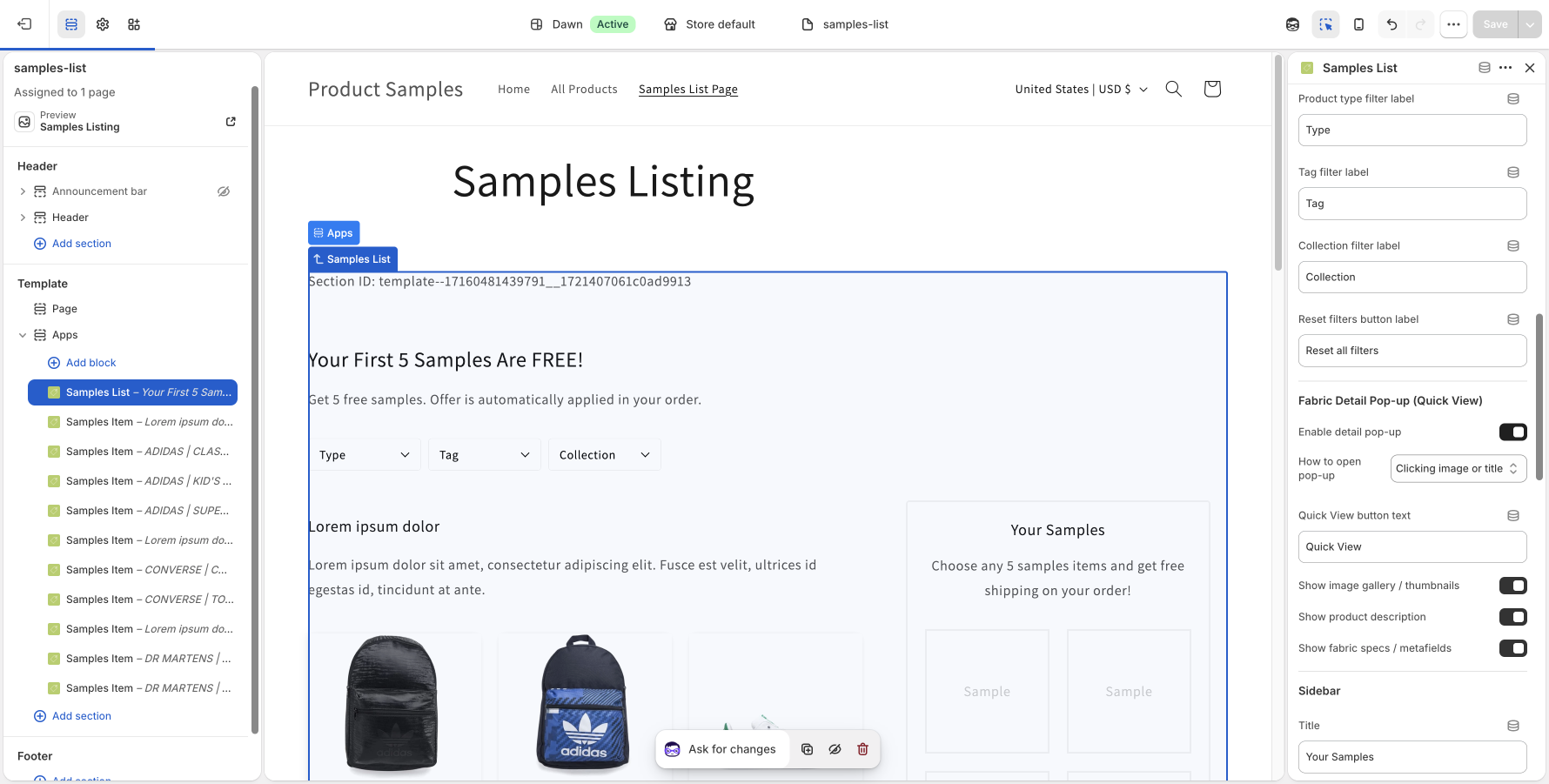
- Under Fabric Detail Pop-up (Quick View), enable Enable detail pop-up.
- Choose how shoppers open the pop-up and which product details to display, then click Save.
Choose how shoppers open Quick View
The How to open pop-up setting provides two trigger options:
- Clicking image or title: Turns the sample image and product title into Quick View triggers.
- Clicking dedicated “Quick View” button: Adds a separate button to each sample card. Use Quick View button text to customize its label.
Choose what appears in the pop-up
Use the display toggles to control the content shoppers see:
- Show image gallery / thumbnails: Displays thumbnails when a product has multiple images. Selecting a thumbnail updates the large image.
- Show product description: Displays the description from the Shopify product.
- Show fabric specs / metafields: Displays available product metafields as readable specification labels and values.
If a product has no extra images or metafield values, the corresponding gallery or specifications content is simply omitted.
Prepare product content in Shopify
Quick View uses the content already stored on each Shopify product. For a richer pop-up, add multiple product images, a clear description, and useful product metafields such as Composition, Width, Weight, Rub Count, or Care Instructions.
How Quick View works on the Samples Listing page
When a shopper opens Quick View, the product appears in a responsive modal above the Samples Listing page. The shopper can browse images, review the available details, and add the sample without navigating to a separate product page.
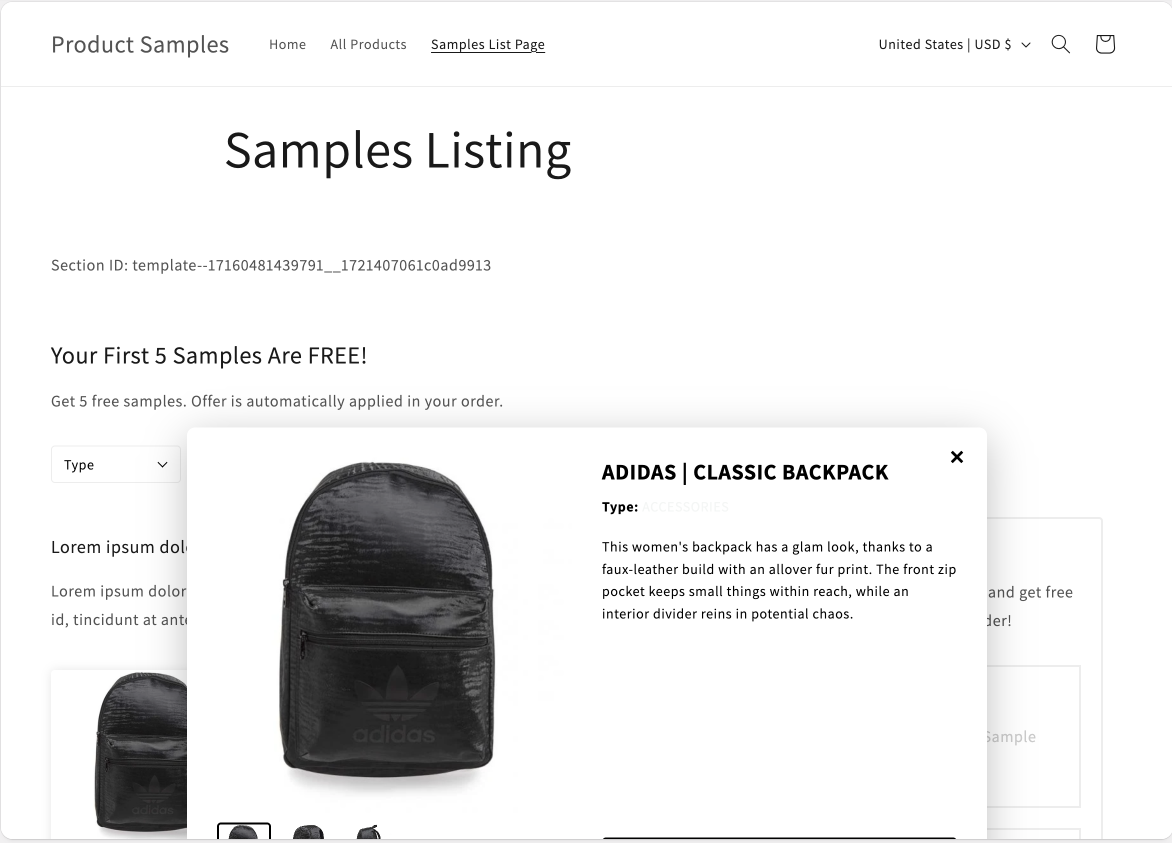
Shoppers can close the pop-up with the × button, by clicking outside the modal, or by pressing Escape on a keyboard. The feature is responsive and works on both desktop and mobile storefronts.
Add to Samples without leaving the pop-up
The pop-up uses the same sample limit and selection state as the Samples Listing page. After a shopper chooses Add to Samples, the item is added to the sample list and the pop-up closes so they can continue browsing.
Was this article helpful?
Help us improve our documentation
Still need help?
Can't find what you're looking for? Our support team is here to help.
Contact SupportRelated Help Articles
How to Translate Product Samples App Text for Multi-Language Shopify Stores
The Product Samples App is built with global shoppers in mind!If your Shopify store serves…
Customizing Product Titles in Samples
1. This feature is available when you enable the Display samples in a separate sample…
New Feature: Configure Shipping Rates Based on Sample Count
We are excited to announce a brand-new feature in Product Samples: Shipping by Sample Count!…