How to Control Line Item Properties for Product Samples in Shopify Checkout


Introduction
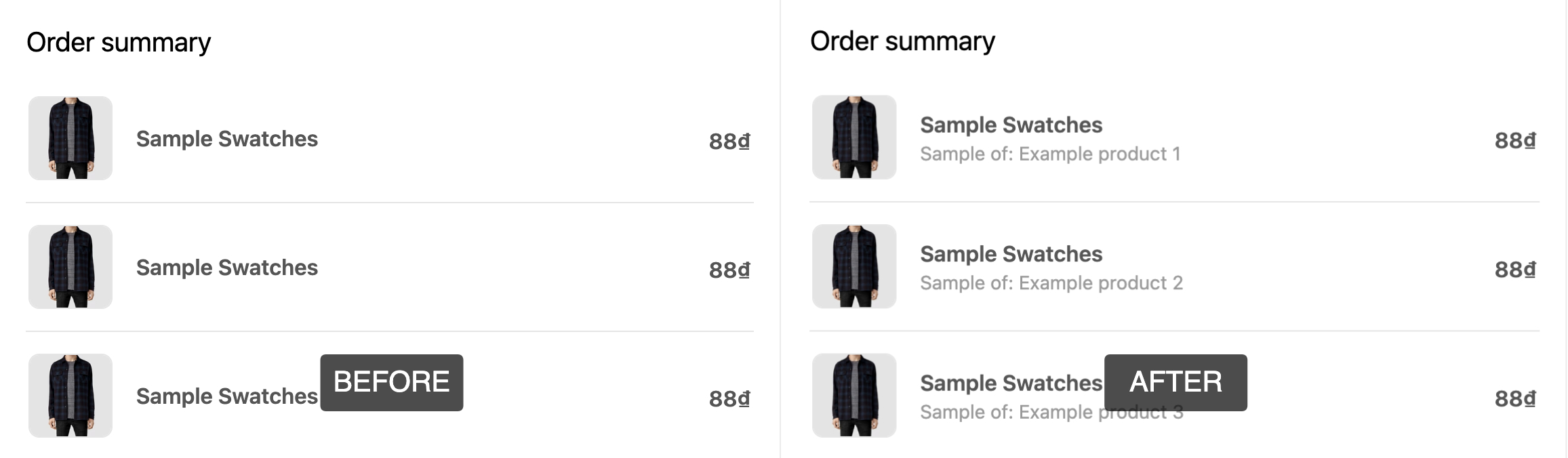
If you’re using the Product Samples app on your Shopify store, you might find yourself wanting to customize the line item properties that pass through to the checkout process. This can be particularly useful if you want to limit certain properties, like the vendor, while retaining others. In this blog post, we’ll walk you through how to achieve this quickly and simply.
Understanding Line Item Properties
Line item properties allow you to send additional information about a product when it is added to the cart. For instance, this could include custom options, notes, or specific selections that enhance the customer experience. However, you might want to streamline this data for sample products to prevent unnecessary information from reaching the checkout.
Removing Specific Line Item Properties
To control which line item properties are passed for your sample products, you can use a simple JavaScript snippet in your Shopify theme. Here’s a straightforward method to customize these properties:
Step 1: Edit Your Theme
First, you need to access your theme files:
- Go to your Shopify admin.
- Navigate to Online Store > Themes.
- Find the theme you want to edit and click on Actions > Edit Code.
Step 2: Add Custom Script
Look for the theme.liquid file. You’ll want to add the following script just before the closing </head> tag:
<script type="text/javascript">
  window.ProductSample = window.ProductSample || {};
  if(typeof ProductSample === 'undefined') {
    var ProductSample = {};
  };
  ProductSample.properties = [];
</script>
This script initializes the ProductSample object and sets an empty array for the properties. This means no properties will be passed to the checkout by default.
Step 3: Customize Your Properties
If you want to keep some properties while removing others, you can modify the array in the script. For example, if you only want to keep the vendor property, change the script to:
<script type="text/javascript">
  window.ProductSample = window.ProductSample || {};
  if(typeof ProductSample === 'undefined') {
    var ProductSample = {};
  };
  ProductSample.properties = ["Vendor"];
</script>
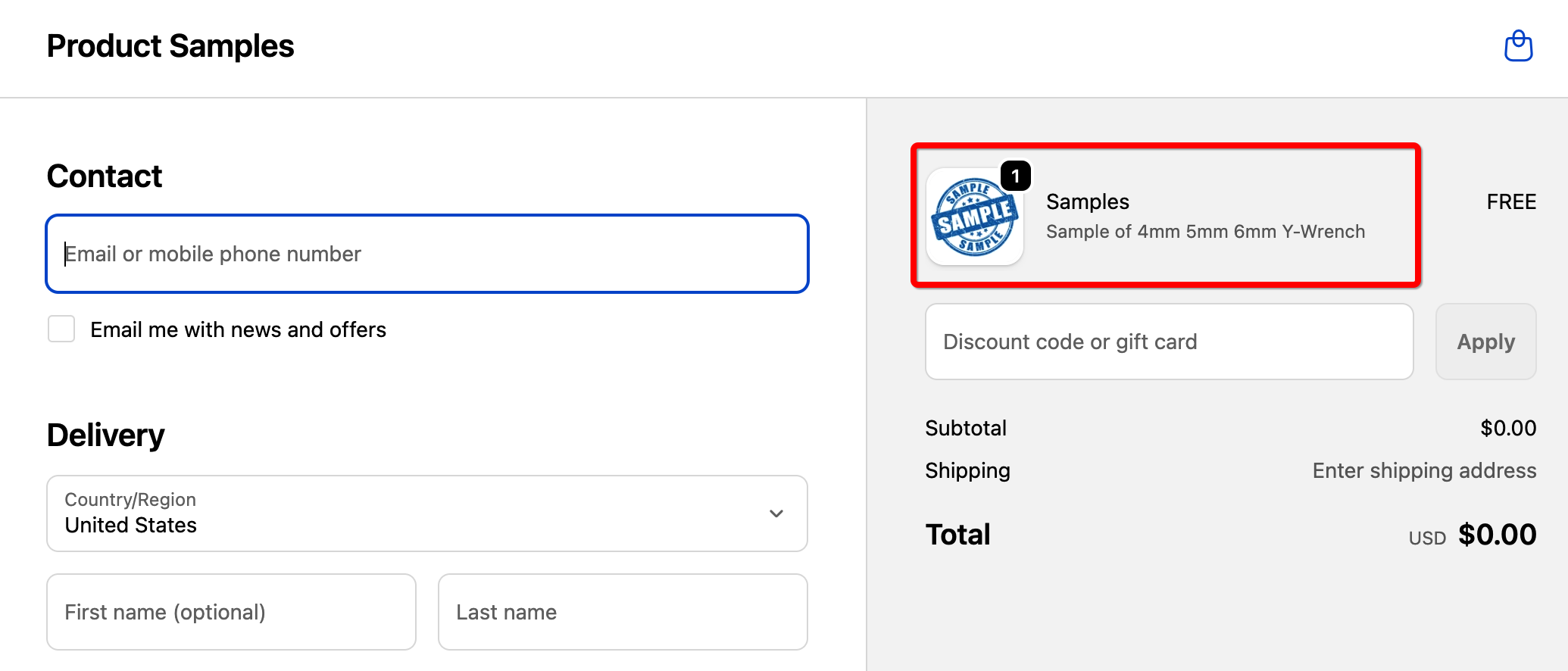
This will ensure that only the vendor line item property is passed during the checkout process.
Testing Your Changes
After making these changes, it’s important to test your checkout process to ensure everything is working as expected. To do this:
- Open an incognito window in your browser.
- Add a sample product to your cart.
- Proceed to checkout and verify that only the desired properties are present.
Conclusion
Customizing line item properties in the checkout for your sample products helps streamline the purchasing process for your customers. By following the steps outlined above, you can easily control what data gets passed along, enhancing the shopping experience on your Shopify store.
For more tips on using the Product Samples app and other Shopify customizations, stay tuned to our blog!