New Feature: Configure Shipping Rates Based on Sample Count
We are excited to announce a brand-new feature in Product Samples: Shipping by Sample Count!
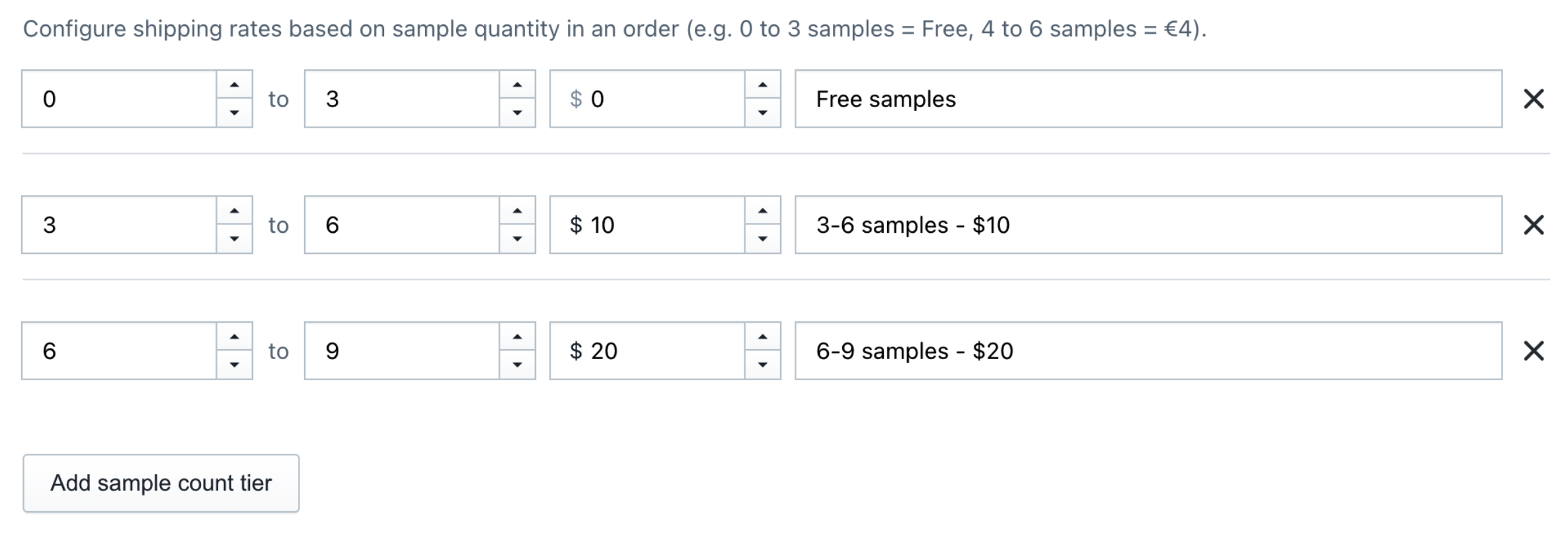
With this feature, you can now set dynamic shipping rates that scale based on the total number of sample items in a customer’s order.
Why Use Sample Count-Based Shipping?
Previously, merchants were limited to flat-rate shipping, free shipping, or country-based rules. But what if a customer wants to order 1 sample versus 9 samples in a single order?
With Shipping by sample count, you can:
- Encourage Trial Orders: Offer Free Shipping for the first few samples (e.g., 1–3 samples).
- Cover Extra Fulfillment Costs: Automatically add tiered shipping costs as the sample count increases (e.g., 4–6 samples = $4, 7–9 samples = $8).
- Prevent Abuse & Protect Margins: Prevent customers from placing massive sample orders without contributing to shipping and handling expenses.
Example Configurations
Example A: Tiered Quantity Shipping
- 0 to 3 samples: Free ($0.00)
- 4 to 6 samples: $4.00
- 7 to 9 samples: $8.00
Example B: Per-Sample Increments
- 1 to 3 samples: Free ($0.00)
- 4 to 4 samples: $2.00
- 5 to 5 samples: $3.00
- 6 to 6 samples: $4.00
How to Set Up Sample Count Shipping
Setting up sample count shipping takes less than 2 minutes:
- In your Shopify Admin, open Product Samples and go to Settings.
- Scroll down to the Shipping rate section.
- Select the radio option Shipping by sample count.
- Click Add sample count tier to create your tier rules:
- Min samples & Max samples: Define the range of sample items (e.g.,
0to3,4to6). Range boundaries are inclusive. - Price: Set the shipping price for that specific tier (e.g.,
0,4.00,8.00). - Shipping label (Optional): Enter a custom shipping method title to display at checkout (e.g., “Sample Standard Shipping”). If left blank, it defaults to your app’s main sample shipping name.
- Min samples & Max samples: Define the range of sample items (e.g.,
- Click Save settings at the bottom of the page.
Frequently Asked Questions
Does this work with international currencies (€, $, £, etc.)?
Yes. Prices automatically format using your shop’s currency symbol and calculate in your store’s checkout currency.
Are the Min and Max sample boundaries inclusive?
Yes. A range of 4 to 6 includes orders with 4, 5, or 6 sample items.
What happens if an order exceeds my highest configured tier?
If a customer orders more samples than your highest Max samples setting, the shipping rate will default to Shopify’s default shipping rates or your fallback configuration. We recommend setting a high upper limit for your top tier (e.g., 7 to 999) to cover all larger orders.
Was this article helpful?
Help us improve our documentation
Still need help?
Can't find what you're looking for? Our support team is here to help.
Contact SupportRelated Help Articles
New Feature: Offer Multiple Shipping Choices for Your Product Samples
Today, we are excited to introduce Advanced Shipping Options. Why Use Advanced Shipping Options? Instead…
Customizing Sample Templates
You can easily update the text and markup shown in your sample widgets directly from…
How to Offer Free Samples to Trade and Professional Customers in Shopify
We often get asked how merchants can offer free samples to approved trade, professional, or…