New Feature: Offer Multiple Shipping Choices for Your Product Samples
Today, we are excited to introduce Advanced Shipping Options.
Why Use Advanced Shipping Options?
Instead of forcing one single shipping price, you can now let your customers decide how fast they want their samples.
- Customer Choice: Let them choose between cheap/slow or expensive/fast shipping.
- Clear Branding: Use your own custom names for each shipping method.
- No Confusion: These options only appear for sample orders. Your regular product shipping stays exactly as it is.
Step 1: Check Your App Mode
Just like our other shipping features, this requires your app to be in the right mode.
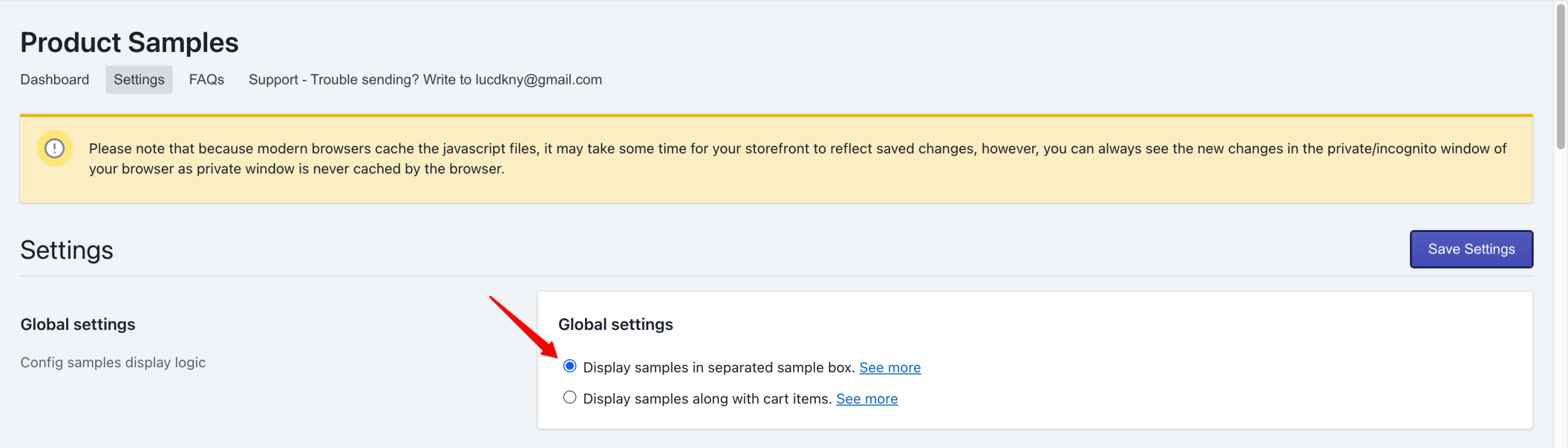
- Open the Product Samples app and go to the Settings tab.
- Under Global settings, make sure “Display samples in separated sample box” is selected.
- Click Save Settings if you made a change.
Step 2: Enable Advanced Options
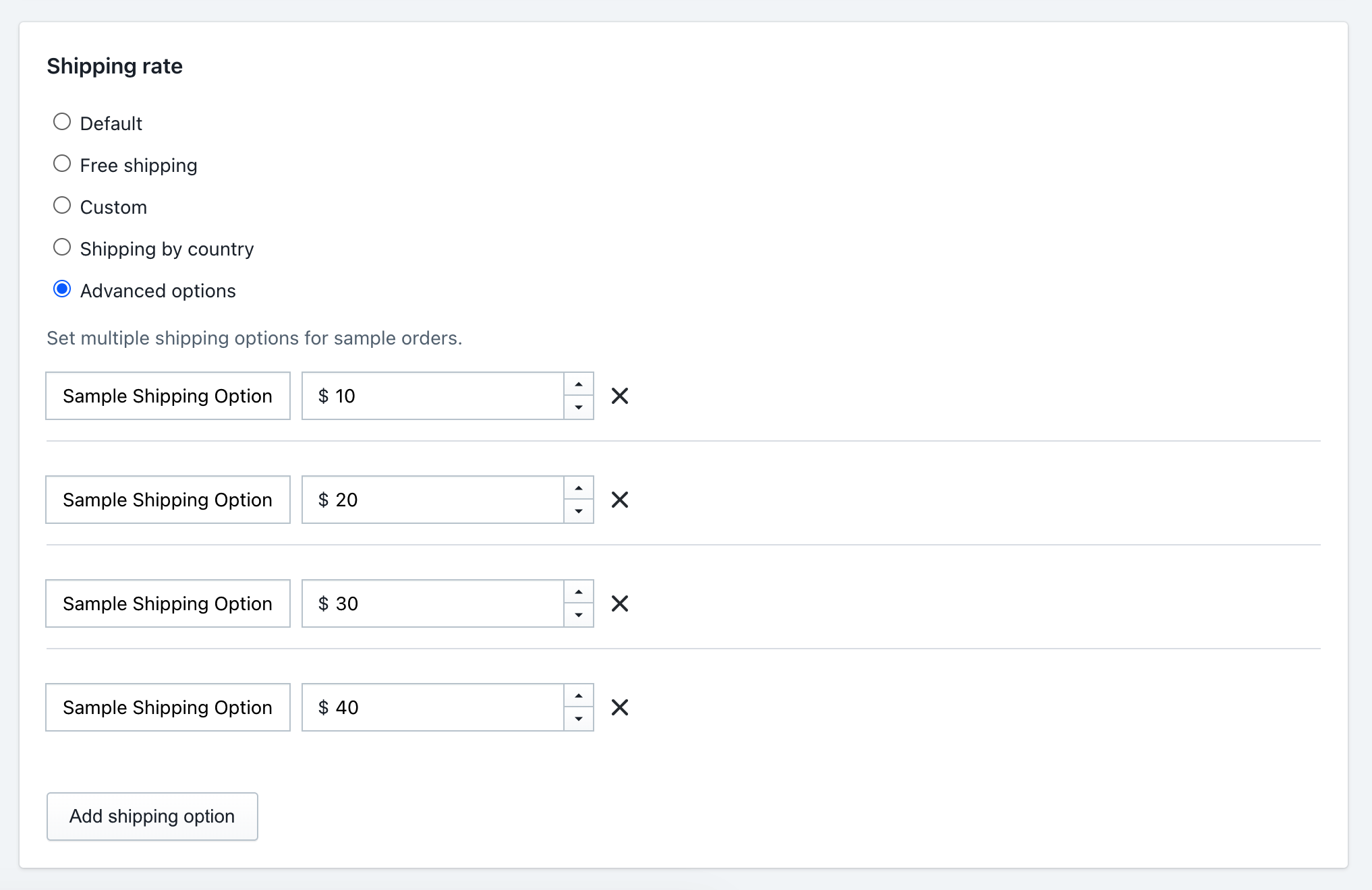
- Scroll down to the Shipping rate card.
- You will see a new option: Advanced options. Select it.
Step 3: Create Your Shipping Methods
Once you select “Advanced options,” a new section will appear where you can add as many choices as you like.
- Click the Add shipping option button.
- Shipping label: Type what the customer will see. Example: Standard Sample Delivery.
- Price: Type the cost. Example: 5.00.
- Want to offer an Express option? Click Add shipping option again.
- Shipping label: Express Sample Delivery (1-2 days).
- Price: 15.00.
You can add as many as you need! If you want to remove one, just click the small “X” icon next to that row.
Step 4: Save Settings
Click the Save Settings button at the top right of the page. Your new shipping choices are now live!
What the Customer Sees
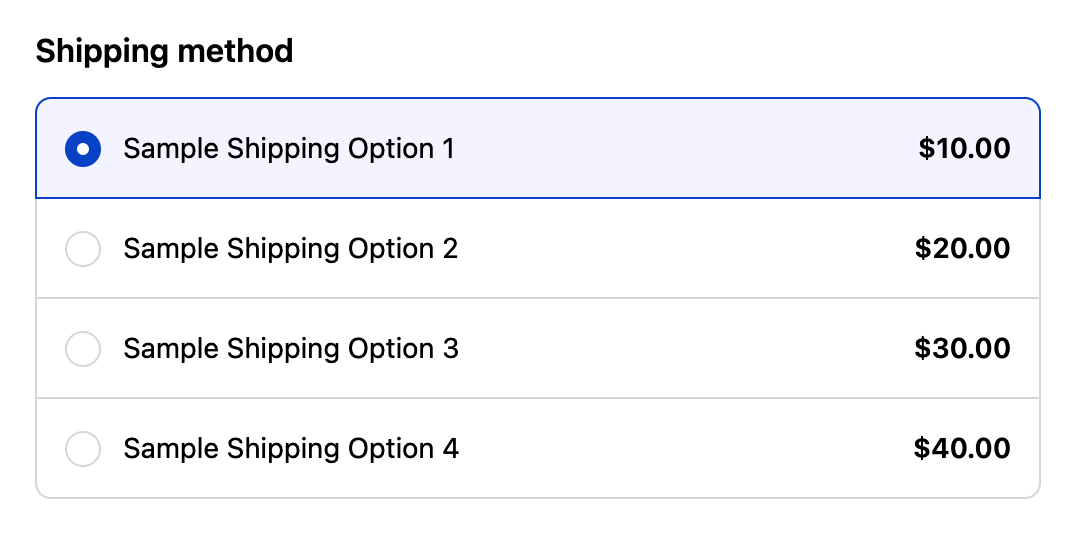
When a customer goes to check out their samples, they will no longer see your regular store shipping rates. Instead, they will see a clear list of the exact options you just created.
This makes the checkout process professional, fast, and focused purely on their sample experience.
Frequently Asked Questions
Q: Can I use this at the same time as “Shipping by Country”?
No. You must choose one “Rate type” at a time. Use Shipping by Country if you need prices to change based on location, or Advanced options if you want to offer multiple choices (like Standard vs. Express) regardless of location.
Q: Will these options show up for my regular orders?
Absolutely not. These are “Sample-Only” rates. Your regular customers buying full-size products will still see your normal Shopify shipping settings.
Q: Is there a limit to how many options I can add?
There is no strict limit, but we recommend keeping it to 2 or 3 choices to make it easy for your customers to decide!
Need a hand setting this up?
Was this article helpful?
Help us improve our documentation
Still need help?
Can't find what you're looking for? Our support team is here to help.
Contact SupportRelated Help Articles
Customizing Product Titles in Samples
1. This feature is available when you enable the Display samples in a separate sample…
How to Translate Product Samples App Text for Multi-Language Shopify Stores
The Product Samples App is built with global shoppers in mind!If your Shopify store serves…
Using App Theme Blocks
With Shopify’s app block extensions, you can easily add and position the Get a Sample…