How to Set Different Shipping Prices for Your Product Samples by Country
Are you sending product samples to customers in different countries? You probably know that shipping a sample to a nearby country is much cheaper than shipping one across the world.
With the Product Samples app, you can now charge different shipping prices for your samples depending on where your customer lives. For example, you can charge $5 for samples going to the USA and $20 for samples going to Australia.
This only applies to sample orders – your regular product shipping stays exactly the same.
This guide will walk you through every step.
Before You Start
There is one important thing you need to know:
This feature only works when your app is set to “Display samples in separated sample box” mode. This is the mode where samples are checked out separately from your regular products. If you are not sure which mode you are using, don’t worry – we will check it together in Step 1.
Step 1: Make Sure You Are Using the Right Mode
- Open your Shopify store and go to the Product Samples app.
- Click on the Settings tab at the top of the page.
- At the very top, you will see a section called Global settings.
- Make sure the option “Display samples in separated sample box” is selected.
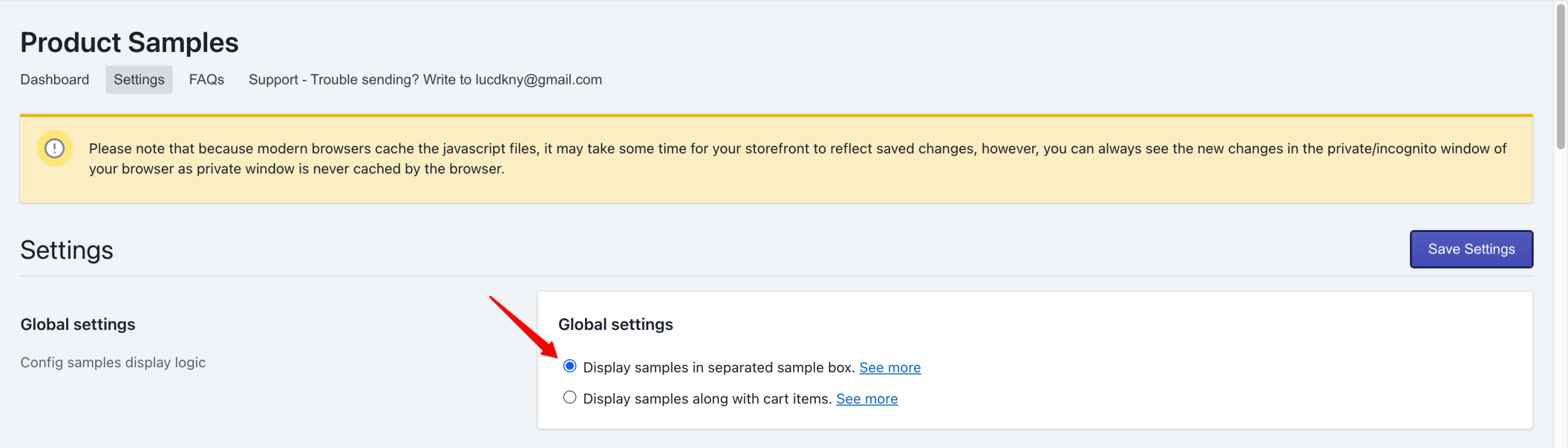
Why does this matter? When samples are separated from regular products, the app creates its own checkout just for samples. This lets the app control the shipping price. If samples are mixed with regular cart items, Shopify handles the shipping instead and this feature will not appear.
Step 2: Find the Shipping Rate Card
- Stay on the Settings page.
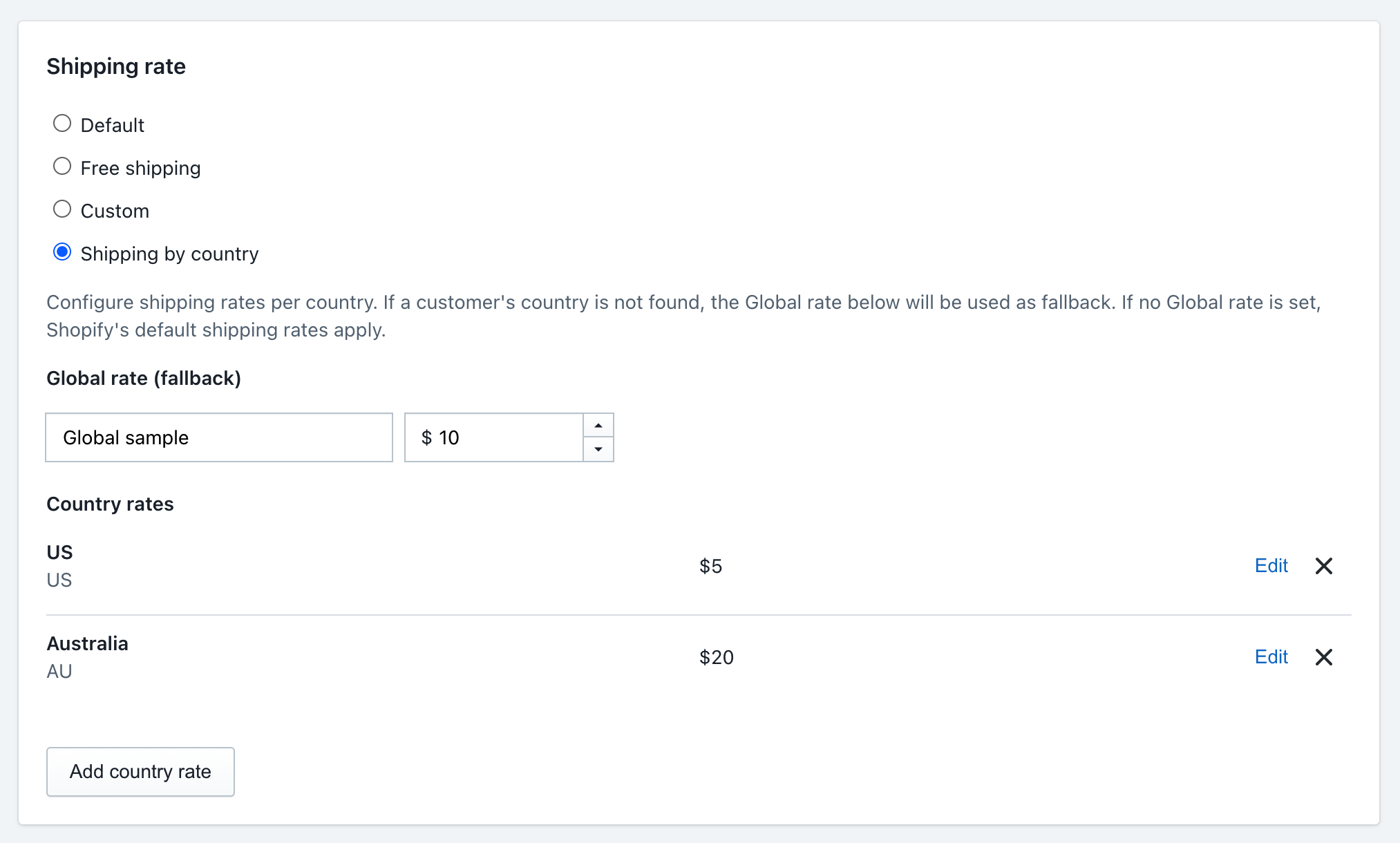
- Scroll down until you see a card called Shipping rate
- You will see four options:
- Default — Uses Shopify’s built-in shipping rates.
- Free shipping — No shipping charge for samples.
- Custom — One fixed price for all sample orders.
- Shipping by country — Different prices depending on where the customer lives.
- Select Shipping by country.
Step 3: Set a Global Rate (Fallback Price)
Once you select “Shipping by country”, new fields will appear. The first section is called Global rate (fallback).
This is the price that applies to any country you don’t set a specific price for. Think of it as your “default” shipping price.
- In the first text box (the placeholder says “Global rate name”), type a name your customer will see at checkout. Example: Standard Sample Shipping.
- In the second text box (the one with your currency sign), type the price. Example: 25.00.
Tip: Set this price a little higher to cover unexpected shipping costs to faraway countries.
Step 4: Add Prices for Specific Countries
Below the Global rate section, you will see a section called Country rates. This is where you set special prices for specific countries.
- Click the Add country rate button.
- A popup will appear. Check the boxes next to the countries you want in this group. For example, you might check United States and Canada together because shipping costs are similar.
- Type a name your customer will see at checkout. Example: North America Sample Shipping.
- Type how much to charge. Example: 10.00.
- Click Save in the popup.
Want to add more countries with different prices? Just click Add country rate again and repeat the steps above. You can create as many groups as you need.
Example setup:
- Group 1: United States + Canada → $10.00
- Group 2: United Kingdom + Germany + France → $15.00
- Group 3: Australia + New Zealand → $20.00
- Everyone else → $25.00 (your Global rate from Step 3)
You can also Edit or Remove any country group by clicking the buttons next to it.
Step 5: Save Everything
Click the Save Settings button at the top right corner of the page. That’s it — you’re done!
Quick Checklist
Before you close this page, make sure you have done all of these:
- ✅ “Display samples in separated sample box” is selected in Global settings.
- ✅ You selected Shipping by country in the Shipping rate card.
- ✅ You filled in the Global rate (fallback) name and price.
- ✅ You added at least one country group with a name and price.
- ✅ You clicked Save Settings.
Frequently Asked Questions
Q: Will this change the shipping price for my regular products?
No. This only affects the shipping price when customers check out product samples. Your regular product shipping stays exactly the same.
Q: What happens if a customer’s country is not in any of my groups?
They will see the Global rate (fallback) price you set in Step 3. If you didn’t set a Global rate, Shopify’s default shipping rates will apply instead.
Q: What if I only ship samples to one country?
You can skip the country groups entirely. Just fill in the Global rate (fallback) section with your single price, and every customer will see that rate.
Q: Can I change these prices later?
Yes! You can come back to Settings > Shipping rate at any time and update your prices. Just remember to click Save Settings after making changes.
Need help? Contact our support team anytime — we’re happy to assist!
Was this article helpful?
Help us improve our documentation
Still need help?
Can't find what you're looking for? Our support team is here to help.
Contact SupportRelated Help Articles
How to Load the App Faster
This doc will show you how to improve app loading speeds! 1. From your Shopify…
Searching Draft Orders
Orders created by app is saved under Orders section on Shopify admin by default. To…
Filter Your Samples Listing by Type, Tags, Options, and Collections
Help shoppers quickly narrow your Samples Listing by product type, tags, variant options, and collections…