Configuration Updated June 29, 2025

Creating a Separated Sample Box

1 min read
351 views
Helpful (1)

With this option enabled, NO ADDITIONAL PRODUCT is added into your store. App creates Draft Orders based on customers choice
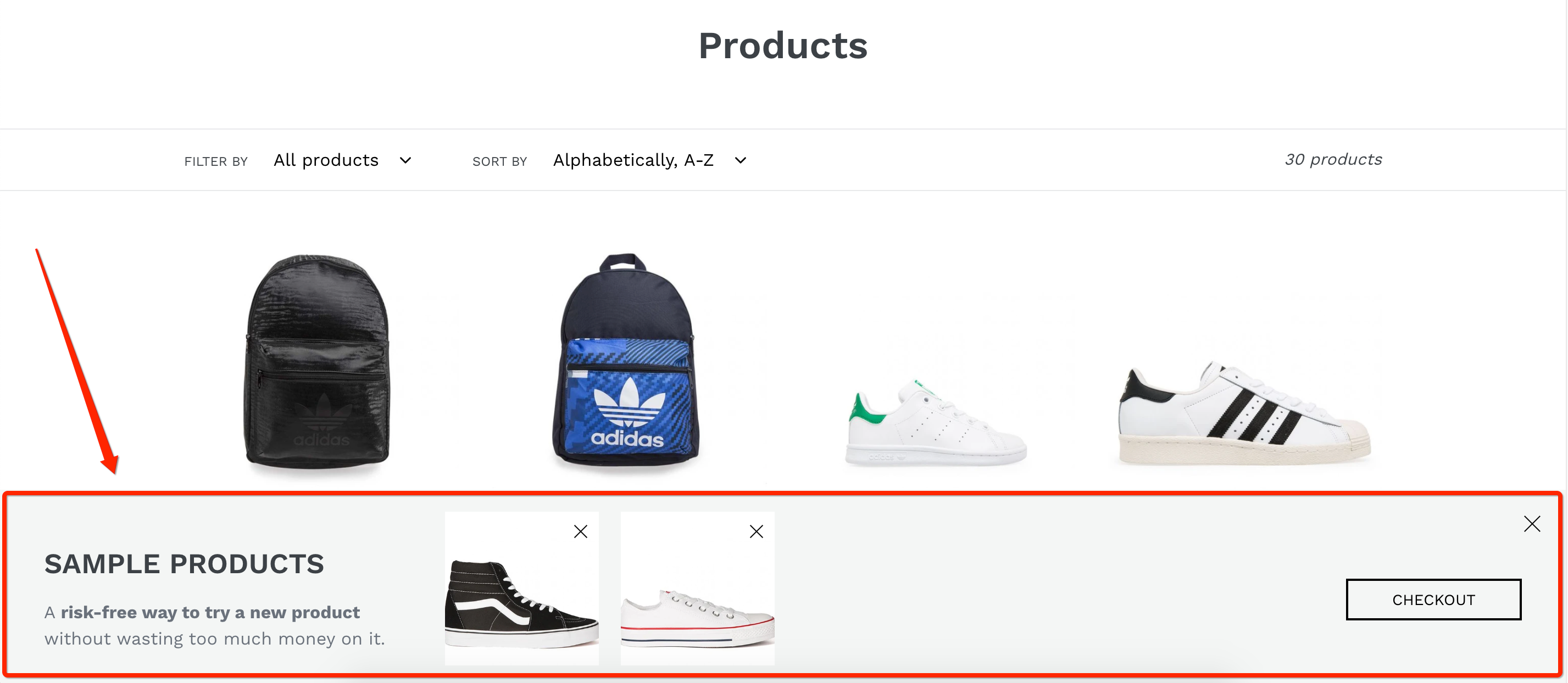
Display samples in separated sample box

1. From your product page, click Get a sample button to add a product as Sample.

2. All added samples will be displayed in a separated Sample Box, which is often placed at the bottom right of your website.

3. Click into the button to open

4. Checkout button in the Sample Box will added ONLY samples listed inside to make an order.

Was this article helpful?

Help us improve our documentation

Still need help?

Can't find what you're looking for? Our support team is here to help.

Contact Support

Related Help Articles

Integration

How to Translate Product Samples App Text for Multi-Language Shopify Stores

The Product Samples App is built with global shoppers in mind!If your Shopify store serves…

Read Article → 5 min read
Integration

Integrating With Product Samples App: Event Hooks & Advanced Settings

The Product Samples App fires custom JavaScript events at key stages, making it easy to…

Read Article → 3 min read
Help Article

How to Set Different Shipping Prices for Your Product Samples by Country

Are you sending product samples to customers in different countries? You probably know that shipping…

Read Article → 5 min read